
Using the Knowledge Base (persistent RAG)
The Knowledge Base turns document Q&A into a persistent, named library you build up over time. Instead of dropping files into a one-off chat that re-indexes every session, you import documents once into a named collection — “Client Contracts”, “HR Policies”, “Research 2026” — and they stay instantly queryable across sessions and app restarts. As always, everything is embedded and stored on your own machine.
The Knowledge Base is part of the Professional and Business editions (and is included in the free trial).
When to use it
Reach for the Knowledge Base — rather than plain Document Q&A — when you query the same corpus repeatedly:
- A precedent library — add executed contracts over time, then ask “Have we ever agreed to a 90-day payment term?” across years of files.
- A policy hub — consolidate every handbook, addendum, and country variant into one searchable surface for employee questions.
- A research collection — add papers as they arrive and ask topical questions across the whole set.
Building a collection
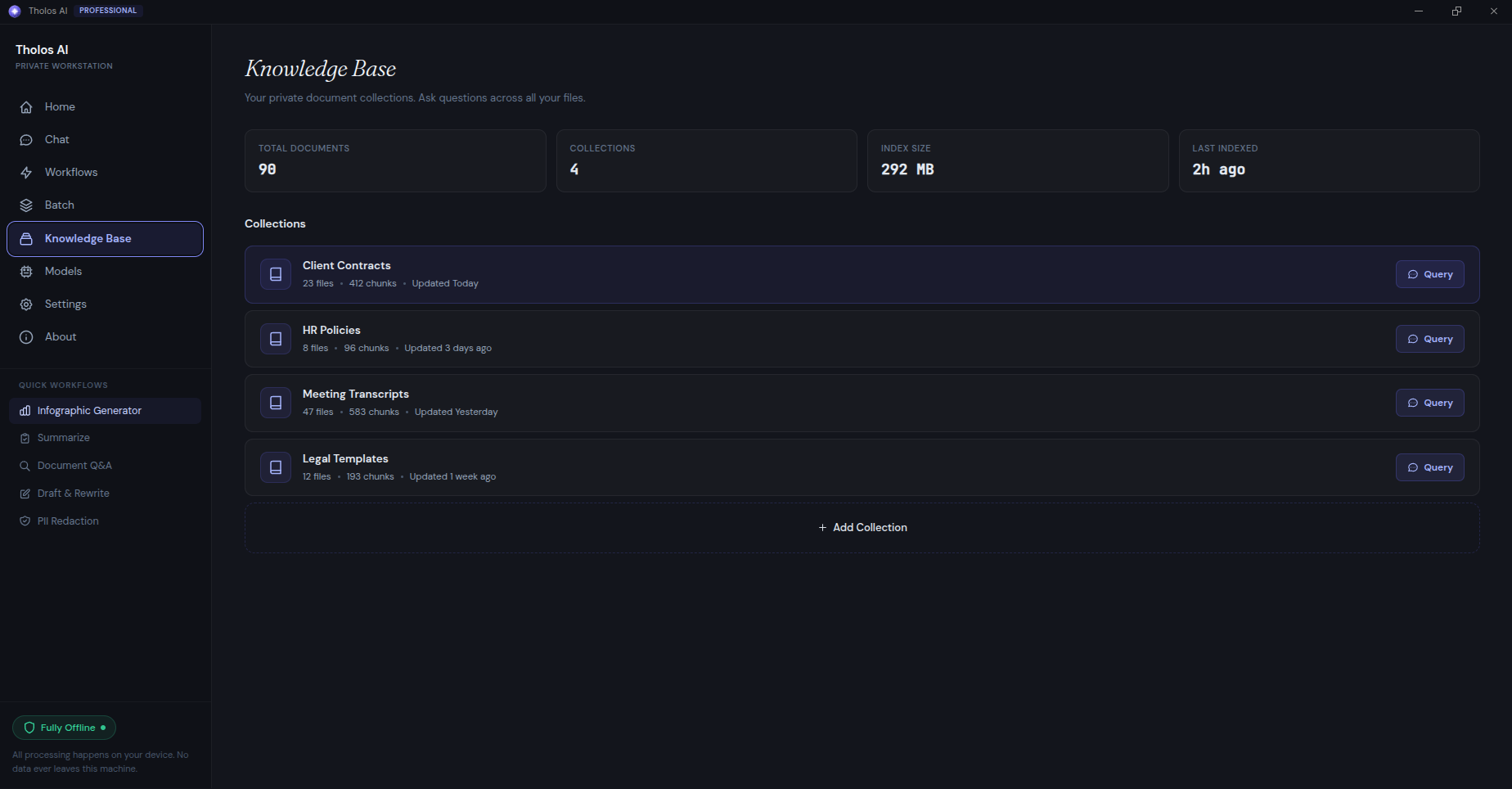
- Open the Knowledge view. It lists your collections with their file counts and storage size.
- Create a new collection and give it a name.
- Add files — click to pick files, pick a whole folder, or drag-and-drop onto the collection. Each file shows indexing progress and turns green when it’s queryable.
Collections accept the formats you’d expect plus a few more: PDF, DOC/DOCX, TXT, MD, XLS/XLSX, CSV, audio and video (MP3, WAV, MP4, MOV — transcribed on import), and images (PNG, JPG — OCR’d on import). Adding a file indexes just that file, not the whole collection, so growing a library stays fast.
Querying it
- Open a collection and click Query. This starts a Document Q&A chat scoped to that collection (the header reads “Document Q&A — <collection name>”).
- Ask questions in plain language. Answers cite the specific file and page they came from, just like Document Q&A.
- To narrow a question to a single document, query that file from the collection’s file list — a removable scope chip appears in the chat. Clear the chip to widen back to the whole collection.
Managing a collection
From a collection’s detail view you can see each file’s status, remove a file, re-index a single file, or re-index the whole collection. The side panel shows collection statistics — number of documents, chunks, and last update — and the Knowledge view shows on-disk index size so you can keep an eye on storage.
Checking it works
- Restart the app — the collection should still be there and still queryable, with no re-import.
- Delete a file — subsequent queries should no longer cite it.
- As with Document Q&A, open a cited passage and confirm the answer is actually supported by it.
Tips
- Group by purpose, not by date. “HR Policies” stays useful for years; “Q1 2026 work” is hard to query meaningfully later.
- Large collections build a substantial on-disk index — review storage in the Knowledge view periodically.