
Using Document Q&A: ask questions about your files
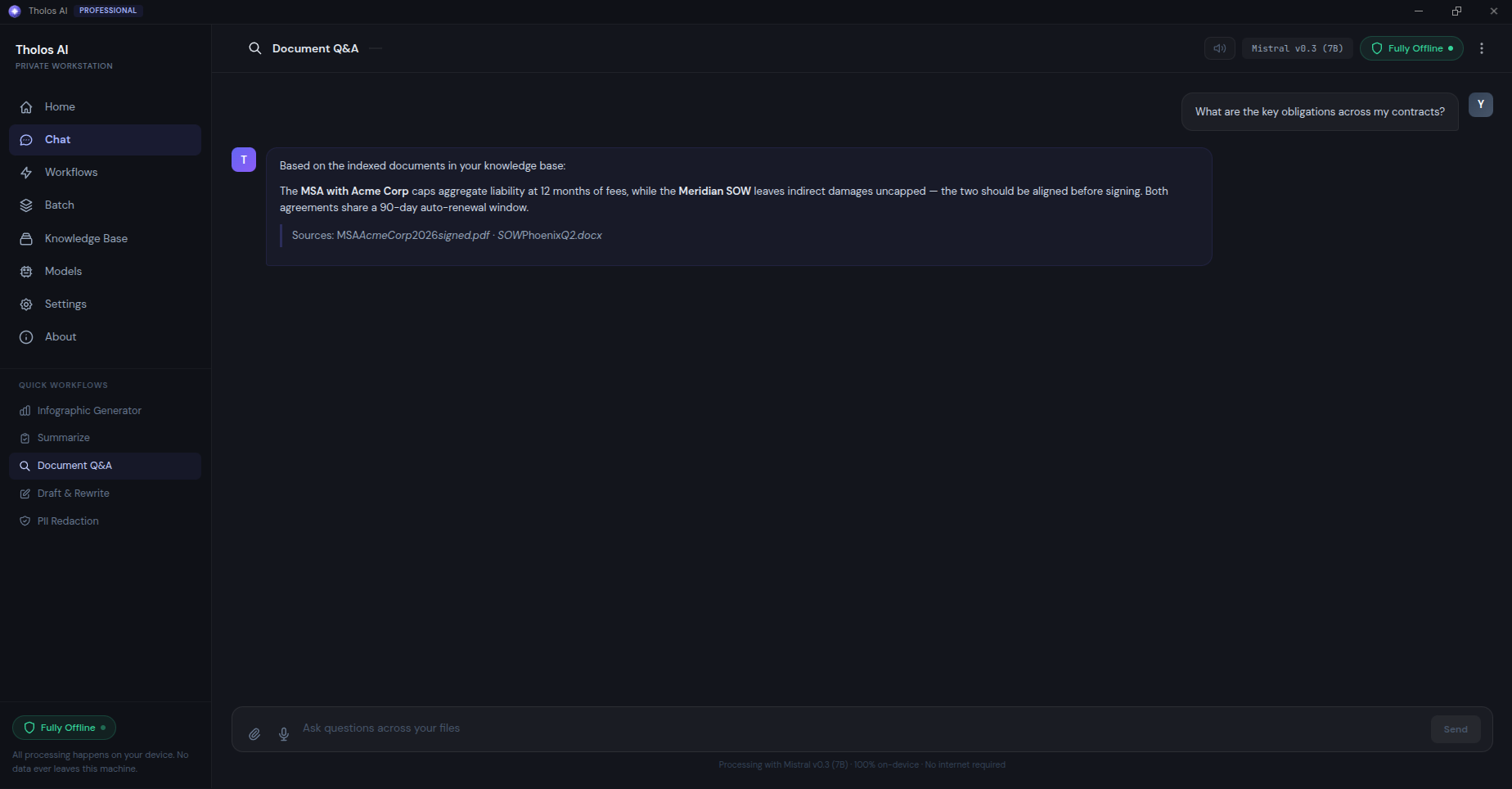
Document Q&A lets you drop in one or more files and then ask questions about them in plain language — like chatting with someone who has read every page. Every answer is cited back to the exact passage it came from, and because parsing, indexing, and generation all run on your own machine, the documents never leave your device.
It’s built for the moments when you’re handed something dense — a contract, a regulatory filing, a medical case file, a board pack — and need a specific answer without scrolling through hundreds of pages or pasting confidential material into a cloud chatbot.
When to use it
- Reviewing a contract — “What is the term?”, “What survives termination?”, “Are there carve-outs for residuals?”
- Briefing on a long filing — drop a 200-page report and ask “What are the top three risks management cited?”, then follow up with “For the second one, what mitigations are mentioned?”
- Working through a case file — “Has this patient ever had an allergic reaction to penicillin?”, “What was the date of the last MRI?”
- Answering a policy question — drop the employee handbook and ask “What is the parental leave entitlement, and does it differ for contract staff?”
How to use it
- From the Home view, drag your files onto the page (or open the Chat view and attach them there).
- Each file shows a progress indicator while it’s parsed, chunked, and indexed. A scanned PDF will show an Extracting text via OCR step. When indexing finishes, the file shows a green check.
- Type your question into the chat box and send it. The answer streams in token-by-token, with citation markers such as
[Doc 1, p. 4]. - Ask follow-up questions in the same chat — the conversation keeps context, so “and what about the renewal clause?” just works.
Supported file types
PDF (text or scanned), DOCX, TXT, MD, HTML, CSV, and XLSX. You can mix several files in one session — for example a master agreement plus its amendments and side letters — and ask questions across all of them at once.
Retrieval depth (optional)
While files are staged, a small control above the chat input lets you choose how many passages (“chunks”) the model reads before answering: 3 (fast), 5 (default), 10 (broad), or 20 (thorough). The default of 5 suits most questions; raise it when an answer needs to pull together evidence scattered across a long document.
Checking the answer
The whole point of citations is that you don’t have to take the prose on faith:
- Click a citation to open a side panel showing the original passage highlighted in context. Confirm the answer is actually supported by it.
- Test the guardrails: ask something the documents don’t cover (“What is the CEO’s birthday?”). A good answer says it can’t find the information rather than guessing.
- The Fully Offline badge stays visible the entire time — you can confirm in Task Manager / Activity Monitor that the app makes no outbound network calls.
Your session — questions, answers, and the files used — is auto-saved to the recent activity feed on the Home view, so you can re-open it later.
Tips
- If an answer looks off, try rephrasing the question, or switch to a larger model in the Models view — smaller models can struggle with implicit references. See Choosing the right AI model.
- Very long documents are handled automatically — you never need to split a file by hand. Read more in Working with long documents.