
Using Entity Extraction
Entity Extraction pulls structured fields out of unstructured documents and hands you back a clean table you can drop straight into a spreadsheet. Instead of copying vendor names and amounts off 200 invoices by hand — or parties and governing law out of a stack of contracts — you describe the columns you want and let Tholos AI fill them in, entirely on-device.
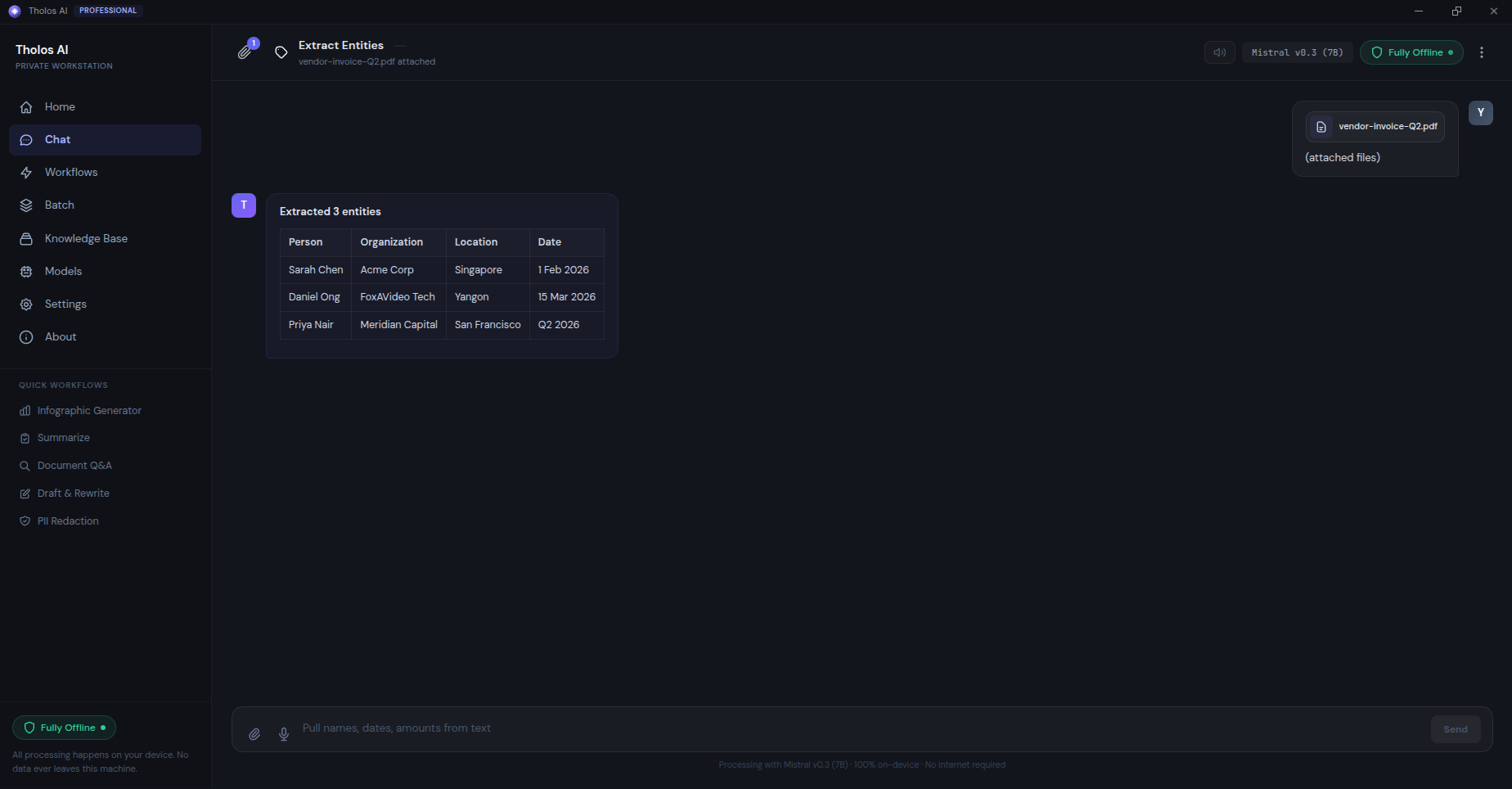
When to use it
- An invoice register — extract vendor, amount, currency, due date, and invoice number from a folder of invoice PDFs into a spreadsheet ready for the accounting system.
- A contract abstract — pull parties, effective date, term, governing law, and termination notice from a batch of contracts into a register.
- A prescription audit — extract drug, dose, frequency, and prescriber from a set of clinical notes.
- An ad-hoc task — define your own fields (e.g. counterparty, fee, milestone) and run them against one file or a whole folder.
How to use it
- Open the Workflows view and choose Extract Entities.
- Attach your document(s). Supported formats: PDF, DOCX, TXT; scanned files are OCR’d automatically.
- Choose a schema — the fields (columns) you want extracted (see below).
- Optionally turn on export and pick a format, then run it. A preview table appears; export when it looks right.
Choosing what to extract
A schema dropdown lets you pick how the columns are defined:
- General entities — tick the kinds you want from a chip set: Person, Organization, Location, Date, Money, Email, Phone, URL. (Person, Organization, Location, and Date are pre-selected.)
- Invoices — Vendor, Amount, Currency, Due Date, Invoice Number.
- Contracts — Parties, Effective Date, Term, Governing Law, Termination Notice.
- Clinical notes — Drug, Dose, Frequency, Prescriber.
- Custom fields — type a comma-separated list of field names; anything you name becomes a column.
The result
You get a preview table with one row per document (or per detected entity instance) and one column per field. Cells the model couldn’t find a value for are left empty rather than guessed. You can sort or filter the preview before exporting. Export to CSV or XLSX (saved to your Settings export folder). For a batch run you get a consolidated workbook plus a status column showing extraction success per file.
Checking the result
- Open the exported file and skim for empty or suspicious cells.
- Spot-check five random rows against the source documents — every populated cell should trace back to actual text in the source.
- For date fields, confirm a consistent format across rows (ISO is a safe choice) before downstream use.
- If a row has many empty cells, open the source and confirm the data really is missing rather than a model miss.
Tips
- If a field is empty across most rows, the name may be too jargon-specific — try a clearer synonym.
- For invoices in multiple currencies, include a Currency field alongside Amount so the spreadsheet stays unambiguous.
- For tougher documents, a larger model in the Models view extracts more reliably — see Choosing the right AI model.