
Using Batch Processing
Batch Processing runs a workflow across many files unattended. Instead of repeating the same task on one document at a time, you stage a list of files in the Batch Process view, choose what to do, and let Tholos AI work through them one by one — entirely on your machine. It’s what turns a one-document-at-a-time tool into a real productivity multiplier.
Batch Processing is part of the Professional and Business editions (and is included in the free trial).
When to use it
- Summarize a stack of reports — turn a folder of PDFs into a folder of summaries to skim.
- Extract from many documents — pull the same fields out of a year of invoices into spreadsheets.
- Translate a set of files — convert a batch of documents to another language in one go.
- Review or transcribe in bulk — run Contract Review across a deal folder, or Meeting Notes across a set of recordings.
Which workflows can be batched
The Batch Process view supports six workflows: Summarize, Translate, Draft & Rewrite, Extract Entities, Meeting Notes, and Contract Review. Each exposes its key options (summary style, target language, entity types, and so on) right in the batch setup. (PII Redaction, with its required review step, is run one document at a time.)
How to use it
- Open the Batch Process view. Make sure a model is loaded — if none is, the view links you to Models.
- Pick a default workflow and set its options. This applies to every file you add.
- Add files — drop them in or click to browse (the picker shows TXT, MD, DOCX, PDF). Files run in list order, top to bottom; drag the handle to reorder.
- (Optional) customize individual files. Click a file’s gear to give it a different workflow or options — you can mix workflows in a single batch. “Apply to all files” resets every file back to the default.
- Choose output. Leave “Save each result to a folder” on and pick a folder and format (TXT, MD, DOCX, or PDF), or turn it off to keep results in the view only.
- Click Run. The button shows how many files (and how many distinct workflows) will run.
While it runs
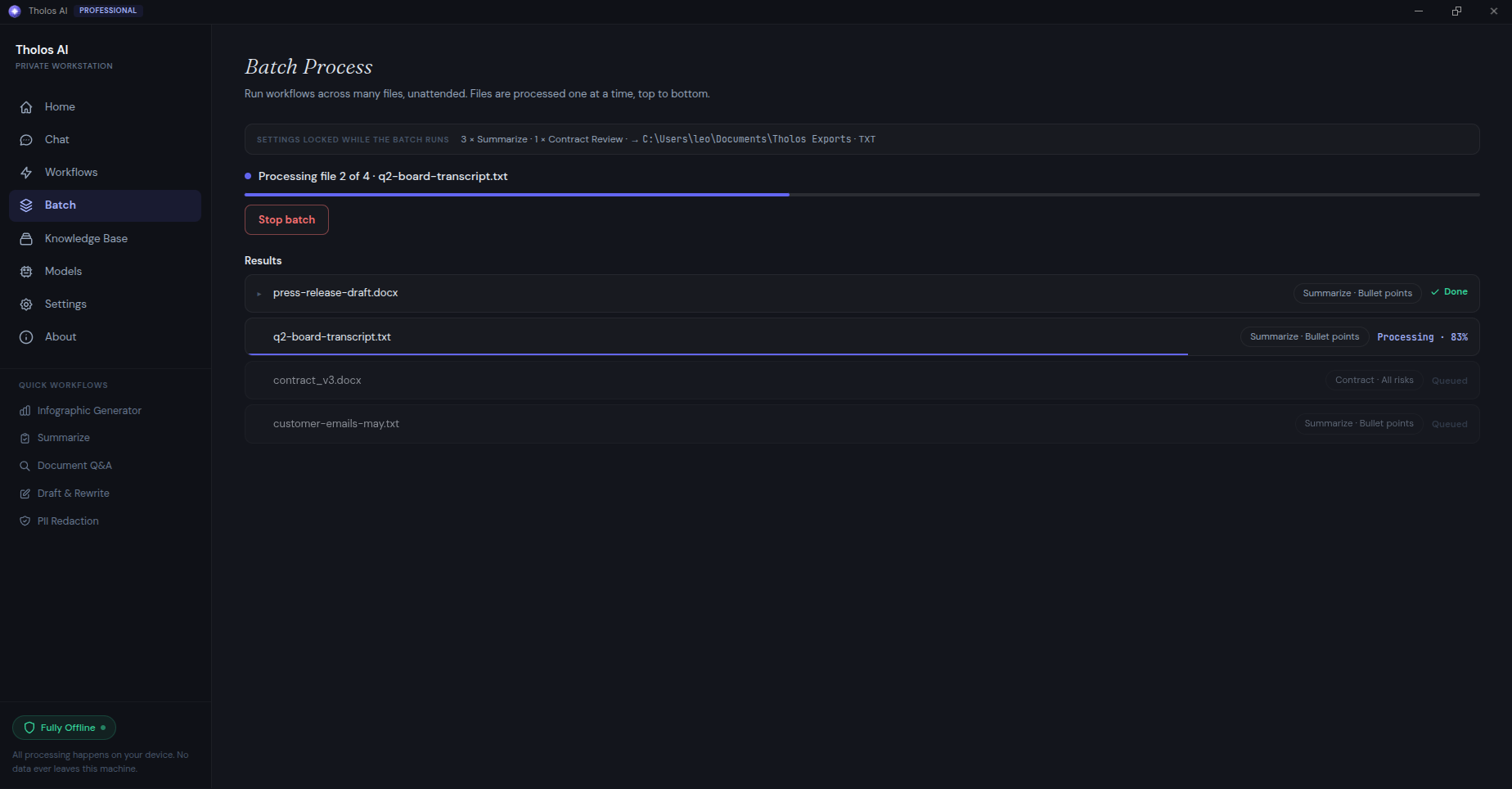
Settings lock once the batch starts. You’ll see Processing file i of N with the current file name, an overall progress bar, and a live results list where each file moves from queued → processing → done (or failed). A Stop batch button is always available.
When it’s done
You get a one-line summary — e.g. “✓ 48 of 50 completed · saved to …”, or a breakdown of done / failed / skipped. Each result row expands to show the output, the Exported: path, and Copy / Open folder buttons. You can Retry failed (or retry a single file), or start a New batch.
Checking the result
- Confirm the result count matches the number of files you added.
- Open a couple of the failed rows and check the error makes sense (e.g. unsupported format, empty file).
- Open a few successful outputs and confirm they look right for the chosen workflow.
- If you stopped mid-run, confirm only the in-flight file is incomplete — earlier outputs are untouched.
Tips
- For very large batches, run overnight — keep the machine plugged in and prevent sleep.
- If the same kind of file keeps failing, fix the workflow options once and rerun rather than patching one-off failures.